How to Speed Up DTF Print Preparation and Color Separations with GPU Acceleration
- Ariel Chapa

- 2 days ago
- 7 min read
Preparing artwork for DTF printing can become a serious production bottleneck. Background cleanup, color separation, white ink management, halftones, file scaling, and RIP setup all have to happen before a printer can begin producing transfers. When these steps are handled manually across several applications, a single complex design can consume an hour or more.
InkSplit streamlines this process by combining automated color separation, GPU-accelerated processing, intelligent underbase controls, live print previews, and built-in RIP functionality in one workflow. The result is faster file preparation, fewer production errors, and more consistent output for both DTF and screen printing.
Why DTF Prepress Slows Down Production
DTF makes it possible to produce detailed, full-color designs without creating a separate screen for every color. However, the artwork still needs to be prepared correctly for film printing and transfer.
Common preparation tasks include:
Removing unwanted backgrounds and colors
Separating artwork into CMYK and white channels
Creating a clean white underbase
Applying choke and opacity adjustments
Preparing gradients and fades with halftones
Scaling artwork to the correct print size
Confirming film output through RIP software
Nesting multiple designs to reduce film waste
In a traditional workflow, these tasks may involve Photoshop, Illustrator, a separation plug-in, and a separate RIP application. Every handoff creates another opportunity for incorrect scaling, missing channels, mismatched settings, or a file that needs to be rebuilt.
The problem is not only the time spent on each file. These delays multiply when a shop is preparing gang sheets, repeat orders, or a queue of customer designs. A process that takes 30 minutes per job can quickly remove hours of productive capacity from a typical workday.
How GPU Acceleration Improves Color Separation
A graphics processing unit, or GPU, is designed to perform many calculations in parallel. That makes it well suited to image processing tasks such as analyzing pixels, building channel data, rendering previews, and calculating halftone patterns.
Traditional CPU-bound software may slow down when it processes high-resolution artwork with gradients, photographic detail, transparency, or multiple color layers. GPU acceleration allows these operations to be distributed more efficiently, reducing the delay between an adjustment and its visible result.
For a DTF or screen printing shop, that speed matters in several places:
Artwork analysis: Complex files can be examined and prepared faster.
Color separation: Multiple channels can be generated in a single automated pass.
Underbase calculation: White ink coverage can be adjusted without lengthy reprocessing.
Live previews: Operators can review print behavior immediately.
Halftone rendering: Dot patterns can be generated quickly for gradients and tonal artwork.
InkSplit is GPU accelerated so operators can move from artwork to a production-ready preview in minutes rather than spending hours manually building channels. The benefit is especially noticeable with photo-based graphics, detailed illustrations, and large files that would otherwise create long rendering delays.

A Faster DTF Color Separation Workflow
InkSplit’s workflow is designed to reduce unnecessary application switching. Instead of separating artwork in one program and preparing it for output in another, the key steps are handled within the same prepress environment.
1. Upload and clean the artwork
Start with the best source file available. PNG and TIFF files with transparency are preferred for DTF because they preserve clean edges and avoid the compression artifacts commonly found in JPEG files. Artwork should generally be prepared at approximately 300 DPI at its intended print size.
InkSplit can help clean up artwork by removing unwanted colors or backgrounds while preserving important detail. This is useful when a customer supplies a flattened file or when a design includes a background that should not appear on the final transfer.
Before continuing, inspect fine lines, transparent fades, text, and other areas where background removal may affect the artwork.
2. Choose the correct separation approach
DTF artwork commonly uses CMYK plus white, while screen printing may use spot colors, simulated process channels, or a combination of both. InkSplit’s automated separation engine can analyze the design and generate the channel structure needed for the selected production method.
For screen printing, the separation can be aligned with a shop’s ink library and physical inventory. Pantone or spot-color channels can be matched more consistently, reducing the gap between what appears on screen and what is mixed at the press.
For DTF, the focus is usually on accurate CMYK color reproduction and controlled white ink placement. The same underlying separation workflow can support both methods, which is valuable for hybrid shops that use screen printing for larger runs and DTF for short runs, samples, or highly detailed graphics.
3. Configure the white underbase
White ink is one of the most important variables in DTF preparation. Too much white can increase ink and powder adhesive consumption while contributing to a heavier hand feel. Too little white can cause colors to appear dull, especially on dark garments.
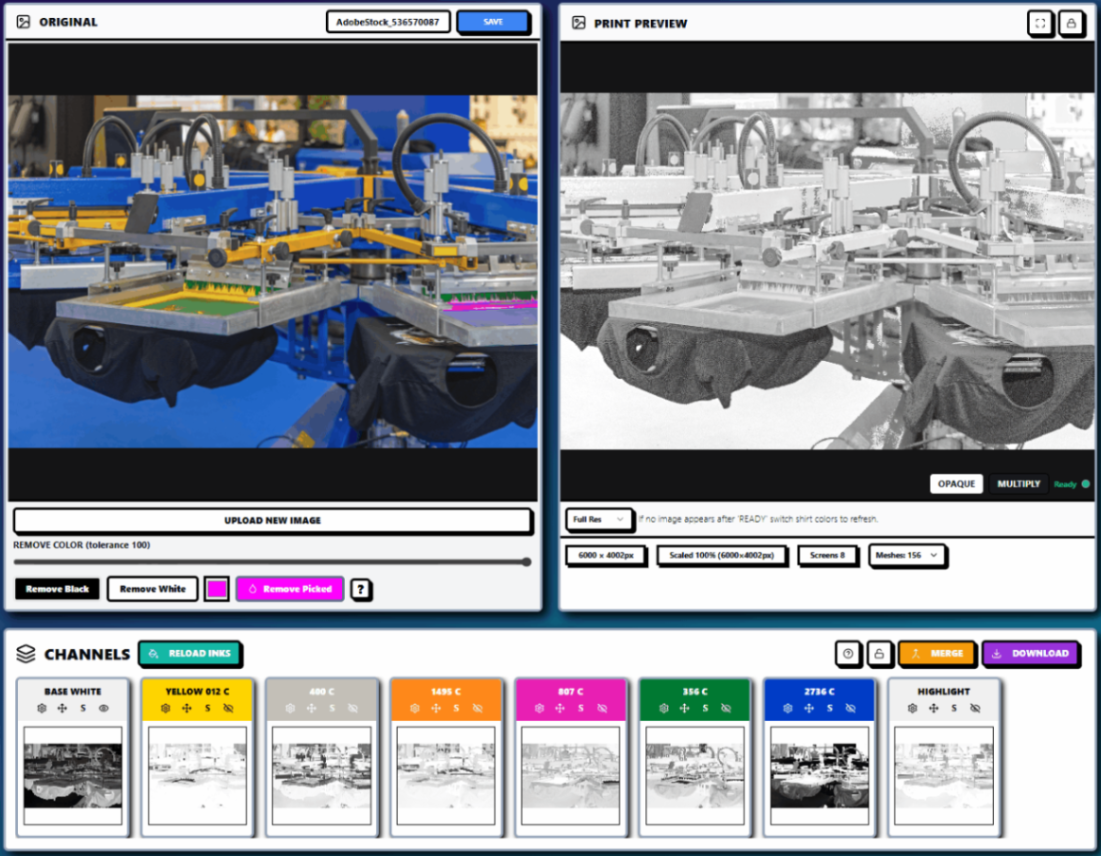
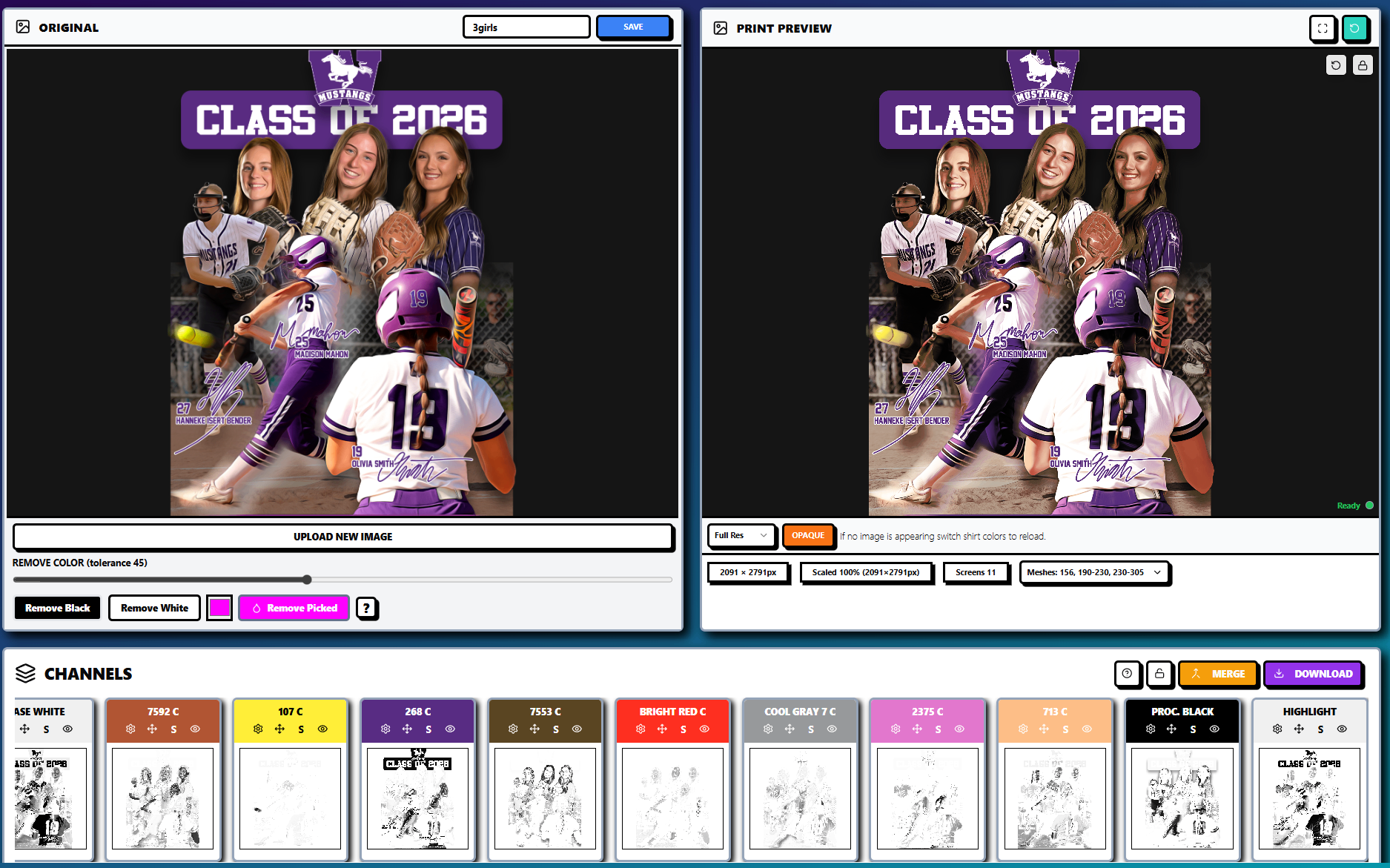
InkSplit’s intelligent underbase controls help manage white ink coverage based on the artwork and output preview. Operators can adjust underbase strength, opacity, softness, and choke while seeing the effect in real time.
A small choke can help keep the white layer inside the edge of the color layer, reducing the risk of a visible white halo. The correct setting depends on the printer, resolution, artwork, and production conditions, so the preview should always be evaluated before output.
This level of control supports a softer hand feel by avoiding unnecessary white ink in areas where full opacity is not required. It also helps produce more calibrated, repeatable results from one job to the next.
Halftones, Mesh Counts, and Print Behavior
Gradients and photographic artwork can be difficult to reproduce cleanly without proper tonal control. Halftones convert continuous-tone information into printable dots, allowing the image to retain detail while controlling ink coverage.
The right halftone settings depend on the production method and equipment. In screen printing, factors such as mesh count, emulsion, ink type, squeegee pressure, and durometer all influence how dots transfer through the screen. A lower mesh count may be appropriate for heavier ink deposits or an opaque underbase, while a higher mesh count can support finer detail and smoother halftones.
InkSplit’s live preview and halftone controls let operators review tonal changes before committing to film or screens. This makes it easier to identify:
Gradients that may need additional contrast
Highlights that are too light to reproduce reliably
Shadows that may merge into a single mass
White underbases that are too dense
Edges that need trapping or choke adjustments
For DTF, halftone and opacity control can also be used to reduce excessive ink coverage and create a less plasticky result. The goal is not to force every DTF design to behave like a screen print, but to give the operator greater control over how much ink and adhesive the final transfer requires.
Why a Built-In RIP Removes a Major Bottleneck
A RIP, or Raster Image Processor, converts artwork and separation information into the data required by a film or printer output device. In many shops, the separation is completed in one application and then exported to standalone RIP software for halftone settings, color management, white ink configuration, or printer output.
That extra step adds friction. It can also create inconsistencies between the separation settings and the final output settings.
InkSplit includes built-in RIP functionality, allowing the workflow to move from separation to print preparation without exporting and re-importing files between disconnected programs. Operators can review the live print preview, confirm the channel structure, apply output settings, and prepare the file for production in one place.
This reduces:
Manual file transfers
Duplicate setup work
Scaling mistakes
Missing white channels
Mismatched halftone settings
Dependence on separate RIP installations and drivers
It also reduces the IT burden for a shop. Because InkSplit is designed as a browser-based, cloud-enabled workflow, teams can work without maintaining a separate RIP installation on every workstation. Projects can be saved and reopened for revisions, repeat orders, and reorders instead of being rebuilt from scratch.
Standardize the Workflow for More Consistent Results
GPU acceleration creates speed, but standardization turns that speed into reliable production capacity. Shops can build repeatable workflows around common garment colors, artwork types, and print methods.
Consider saving or documenting profiles for:
Light and dark garments
Cotton and polyester blends
Photo-realistic artwork
Flat spot-color artwork
Soft-hand DTF transfers
Screen printing jobs using 110, 156, 200, or 230 mesh
Common halftone LPI and dot-angle settings
A standardized workflow might look like this:
Upload the artwork.
Clean the background and unwanted colors.
Select the DTF or screen printing output approach.
Generate the automated color separation.
Adjust the smart underbase and choke.
Review halftones and tonal transitions.
Confirm the live print preview.
Send the file through the built-in RIP.
Save the project for future revisions or reorders.
This process gives new operators a clear path to follow and reduces dependence on one prepress specialist who knows every setting in several different applications.

The Production and Cost Benefits
InkSplit is built to save approximately one to three hours on complex jobs and an average of about $45 per job in labor and overhead. The exact savings depend on the shop’s hourly rate, artwork complexity, order volume, and existing software setup, but the production impact is straightforward: less time spent preparing files means more time available for printing, finishing, and fulfilling orders.
The benefits also extend beyond labor:
Fewer manual adjustments can reduce misprints.
Accurate underbases can reduce rework and wasted materials.
Consistent separations can reduce screen re-burns.
Saved projects simplify repeat orders.
A built-in RIP can reduce software and maintenance costs.
Cloud-based storage makes files available without tying production to one workstation.
For a shop handling multiple DTF transfers or screen printing jobs each day, these improvements can quickly affect throughput and profitability.
Move From Artwork to Output Faster
DTF preparation does not have to be a disconnected chain of manual edits, exported files, and separate RIP settings. With GPU-accelerated color separation and built-in RIP functionality, InkSplit brings the most time-consuming prepress steps into one streamlined workflow.
You can learn more about InkSplit’s automated color separation features, compare workflows on the InkSplit comparison page, or review available pricing plans.
For shops that need faster DTF preparation without sacrificing color accuracy, underbase control, or production confidence, InkSplit provides a faster path from artwork to print-ready output.
Comments